Student - How Do I Update the LockDown Browser?

Summary

Instructions on how to update your Respondus LockDown Browser

Body

How to update LockDown Browser


Method 1: Use the In-App Update Tool (Recommended)

Step One: Open the Respondus LockDown Browser application. 

Uploaded image


Step Two: Select the "i" button from the toolbar on the top right.

Uploaded image


Step Three: In the information window, select Check for Update.
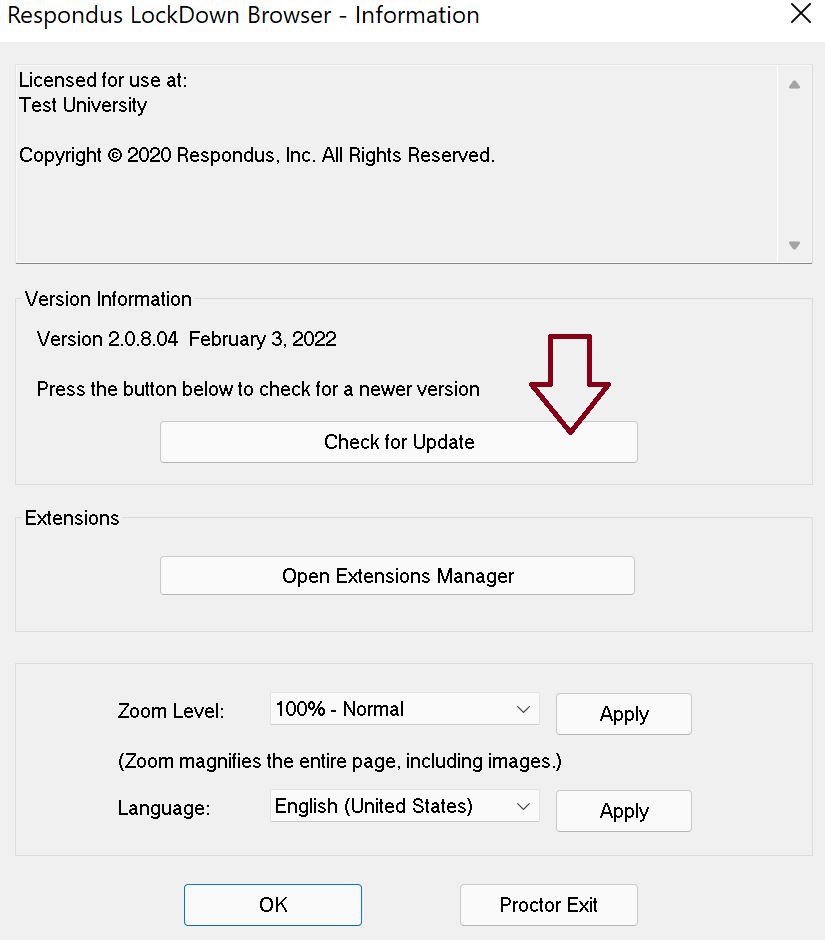
 

Check_For_Update.JPG


Method 2: Reinstall the Respondus LockDown Browser


If the in-app tool does not work or requires a fresh build: Please visit the related article posted below.

Student - How Do I Download the LockDown Browser?

Details

Details

Article ID: 170912
Created
Thu 10/8/26 3:25 PM
Modified
Wed 10/21/26 1:35 PM

Related Articles

Related Articles (1)

A simple guide on installing and taking tests in the LockDown Browser.

Related Services / Offerings

Related Services / Offerings (1)

Removing old Canvas support Links and updating the password link